This background remover cuts out the subject with AI.
Background Transparent
Extras None
File names Same as the photo
Empty keeps each name. Use {name}, {n} for its number, {width} and {height}: shop-{n} makes shop-1, shop-2.
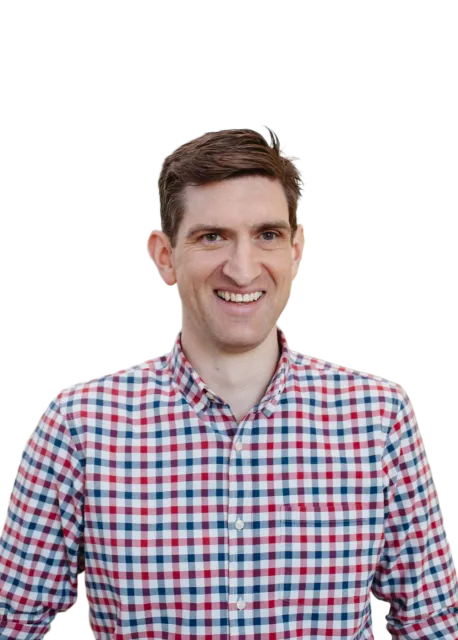
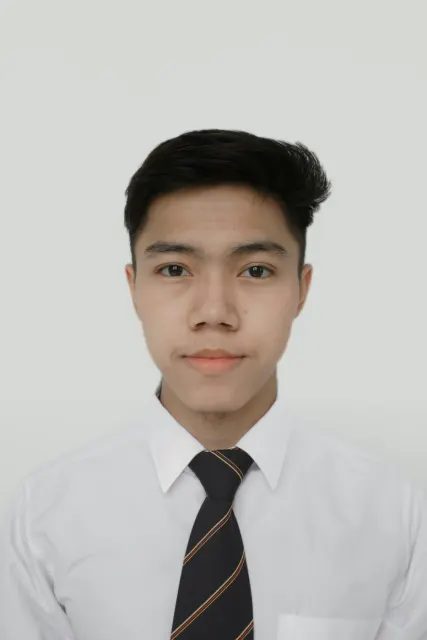
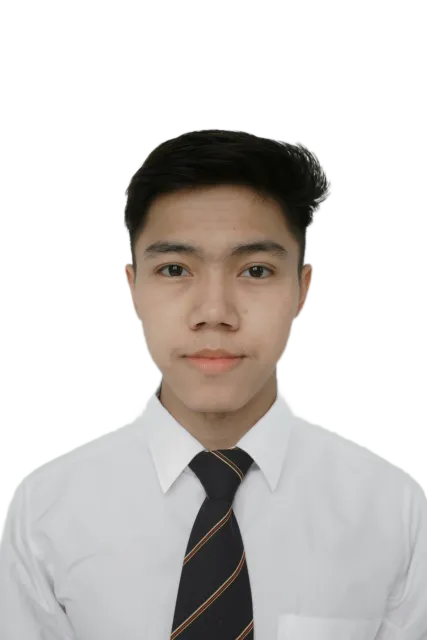
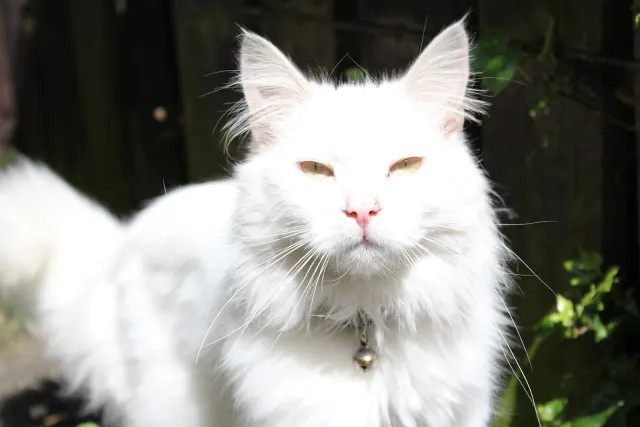
Before and after
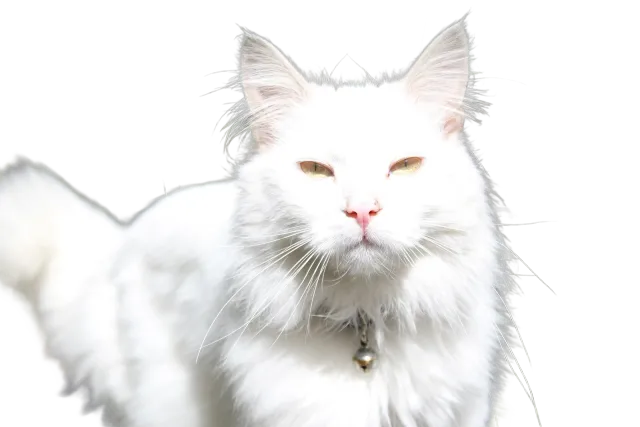
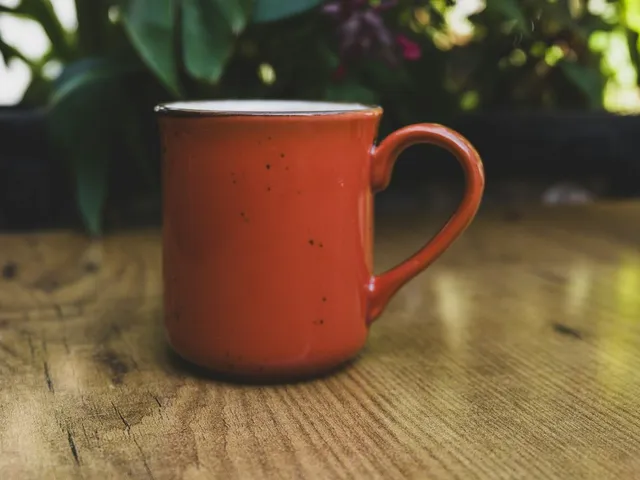
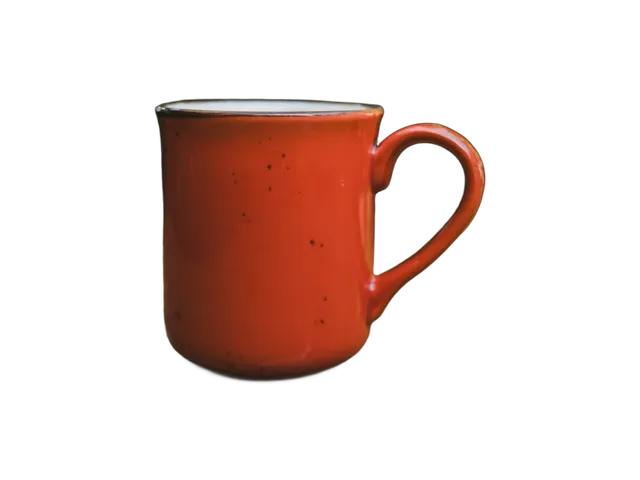
Our own photos, cut out by the same model your photos go through. Drag the line.

Good to know
What it does
Download a transparent PNG or put the photo on white, and fix any spot with a brush.
The AI finds the subject, a product, a person or a pet, and separates it from everything around it. What happens to the rest depends on “Background”: “Transparent” takes it away, “White”, “Color”, “Gradient”, “Image” and “Scene” replace it, “Blur” keeps it, blurred.
- The subject’s pixels stay as they were. Only “Fix light and color” changes them, by brightening a dim photo and removing a color cast.
- The result keeps the photo’s shape, up to 2,000 px on its long side on the free plan, unless “Crop to the product” trims the empty space.
- “Transparent” saves a PNG; the others save a JPG.
- The file keeps its name with the new ending: mug.heic comes back as mug.png.
- Details stored in the photo file, such as the camera, the date and the location, are not carried into the result.
Which background to pick
- “Soft shadow” puts a light shadow under the subject so it doesn’t float. Its softness, strength and direction, and “Reflection”, a faint mirror image as on a glossy floor, are Premium, which is not on sale yet. You can try a marked one on your own photo. Download with one on and you get it at up to 800 px on the long side; a free one gives the tool’s usual size.
- “Crop to the product” cuts the result down to the subject with a thin margin.
- Transparent
- Saves as: PNG
- Good for: Placing the subject on your own design, slide or web page
- White
- Saves as: JPG
- Good for: Catalog and product photos on pure white (RGB 255)
- Color
- Saves as: JPG
- Good for: A soft studio tone, Paper, Stone, Sand, Blush, Sage, Sky, Lilac, Ink. Your own from a HEX code is Premium
- Gradient
- Saves as: JPG
- Good for: Studio gray, Warm, Cool, Dusk, lighter at the top
- Blur
- Saves as: JPG
- Good for: Portraits and profile pictures: the photo’s own background, blurred
- Image
- Saves as: JPG
- Good for: A picture of your own behind the subject, filling the frame
- Scene
- Saves as: JPG
- Good for: A surface or room of ours: 20 to pick from (studio, wood, marble, kitchen, linen, outdoor, room, shelf)
Examples
- A 3024 × 4032 HEIC phone photo of a mug on a kitchen table, with Transparent: mug.png, 1,500 × 2,000 on the free plan, with only the mug left.
- The same photo with White and “Crop to the product”: mug.jpg on pure white, cut down to the mug’s edges.
- A shoe on a gray table with Color, Sage, and “Soft shadow”: a JPG in the photo’s shape, up to 2,000 px, on pale green, with a light shadow under the shoe.
- A headshot for a CV with White: the same photo with a white wall behind you. For passport photos, use Passport Photo instead: passport offices refuse photos whose background was changed.
For a cleaner cutout
- Use a photo where the subject stands out from the background: a dark product on a dark cloth leaves the AI little to go on.
- Keep the whole subject in the photo, not cut off at the edges.
- Check thin parts like straps, fur and glass on the result, and fix them with the brush.
How to remove the background from a photo
- Add up to 10 photos per batch on the free plan, 25 MB each: JPG, PNG, WebP, AVIF, HEIC, GIF or BMP.
- Open “Background” and pick Transparent, White, Color, Gradient, Blur, Image or Scene; tick any extra you want under it.
- Press “Remove background”, look at each result, and fix a wrong edge with “Edit cutout”.
Questions
Is the result full resolution?
On the free plan the result is up to 2,000 px on its long side: a smaller photo keeps its width and height, a larger one comes out scaled down to 2,000 px, in the same shape. “Crop to the product” trims the empty space around the subject. There is no watermark.
Which photo formats does the background remover take?
JPG, PNG, WebP, AVIF, HEIC, GIF or BMP, up to 25 MB each. “Transparent” saves a PNG; “White”, “Color”, “Gradient”, “Blur” and “Image” save a JPG.
Can I keep the shadow?
The cutout keeps the subject only, so a shadow on the table usually goes with the background. Tick “Soft shadow” to put a new, light shadow under the subject.
How is hair or fur handled?
The AI finds the outline of hair and fur on its own. Fine loose strands can come out soft or cut off. Brush them back in with “Edit cutout” and the restore brush.
Can I fix the cutout?
Yes. Click the result or “Cutout” over it to erase or restore parts with a brush, with undo, then apply.
Does it work on my phone or tablet?
Yes. The cutout is made on our server, so a phone gets the same result as a computer; fix any soft edge with the brush.
How many photos and how big can they be?
On the free plan you can add up to 10 photos at once, 25 MB and 8,200 px each. It takes up to 20 jobs a day on our server on the free plan.
Questions every tool shares are answered on the FAQ page.