Find the faces in a photo, then blur, pixelate or black them out.
Cover Faces and boxes
Cover with Blur
Strength Medium
Area size 100%
How far each found face’s box reaches. A box you draw stays as drawn.
File names Same as the photo
Empty keeps each name. Use {name}, {n} for its number, {width} and {height}: shop-{n} makes shop-1, shop-2.
Download Same format
Before and after
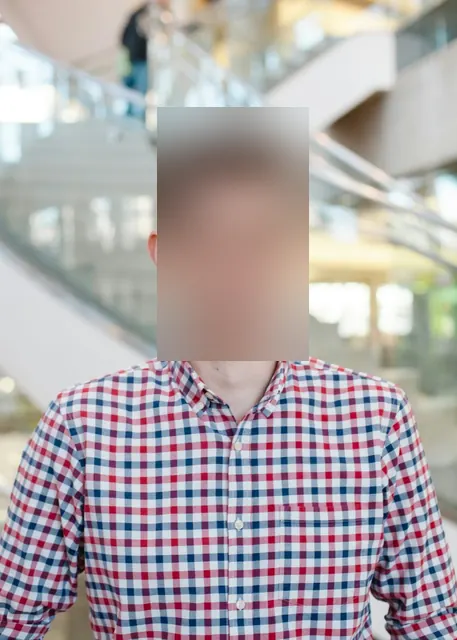
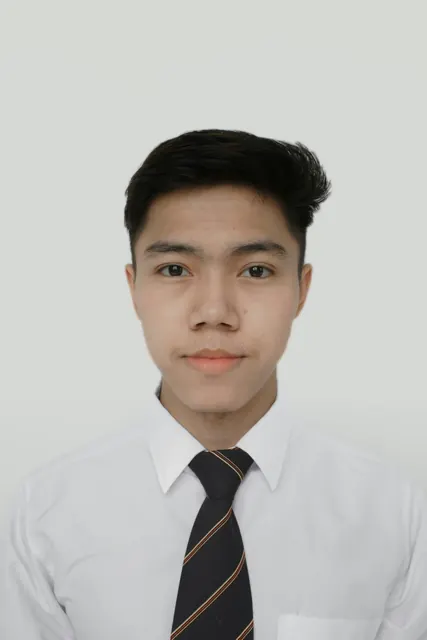
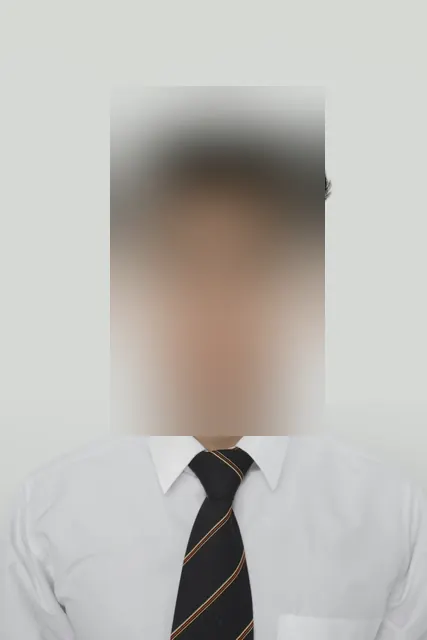
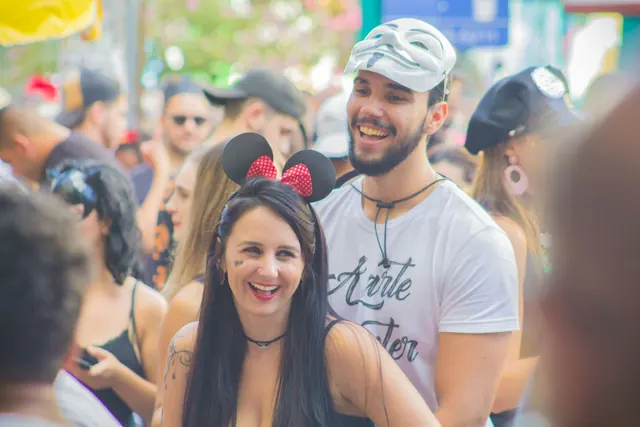
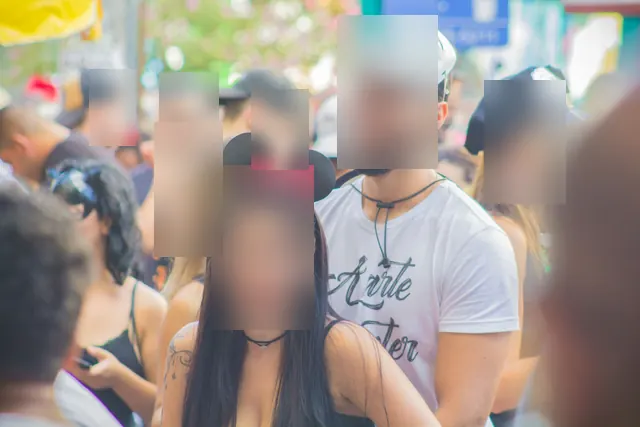
Every face found and blurred at the default settings, nothing drawn by hand. Drag the line.


Good to know
What it does
Each photo you add is looked at for faces on your device, and each face found gets a box that reaches from the chin to above the hair. Press a box to skip that face; drag on the photo to add a box over a face it missed, a number plate, a name tag or a screen.
Inside each box the pixels are replaced, not covered: by a blur, by a mosaic of blocks, or by solid black. The blur starts as the same mosaic, so nothing of the face is left in the file to sharpen back.
The rest of the photo stays as it was. The format stays (HEIC, GIF and BMP become JPG), at quality 92 for JPG, WebP and AVIF; PNG stays lossless. Camera details and location are not carried over.
Blur, pixelate or a black box
- Blur: a soft patch that draws the least attention in a photo you share.
- Pixelate: blocks you can see, each one color. Light makes 10 blocks across a box’s longer side, Medium 7 and Strong 4, and Fine tune sets anything between; fewer blocks hide more.
- Black box: nothing left at all, the usual choice for a document or a screenshot.
Examples
- The sample portrait, 1000 × 1400 pixels: one face found, its box about 330 × 550 pixels. At Medium the blocks are 79 px; at Strong, 138 px.
- A number plate in a box of 300 × 70 pixels, drawn by hand: at Medium its blocks are 43 px, taller than the letters, so none can be read.
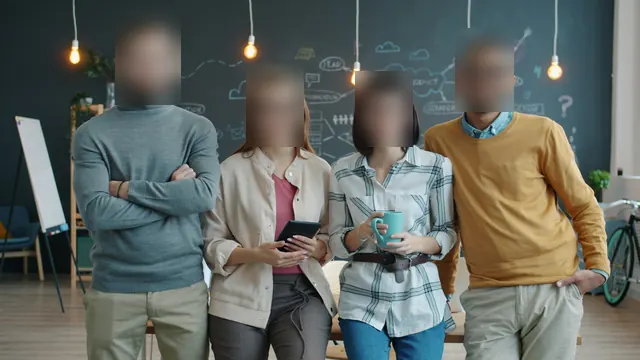
- A team photo with a few people who asked not to be shown: their faces are boxed with the rest; press the boxes of those who agreed to skip them.
Why it can’t be undone
Programs that claim to unblur a face work on a light blur, where the face is only smeared and still in the file. Here every block of the box becomes one average color first, so what was inside is gone from the photo you download, whichever cover you pick.
How to blur faces in a photo
- Add your photos (up to 100 photos at once on the free plan, 25 MB each). Each is looked at for faces, and each face found gets a box.
- Each covered box shows the look on the photo as you change Cover with or Strength. Press a box to skip a face you want to keep, or drag on the photo to cover something else (on a phone, press Draw a box first). Pick another photo in the list, or use ‹ ›, to check its boxes.
- Under Cover with, pick Blur, Pixelate or Black box and a Strength; Area size makes every found face’s box larger or smaller. Then press the button and download one photo, or all of them as a ZIP.
Questions
Can a blurred face be unblurred?
Not from this file. Each box is first turned into blocks of one color, so the detail inside is replaced, not hidden; Blur then smooths those blocks. A program that sharpens a light blur has nothing left to work from.
What if a face is not found?
Draw a box over it: drag on the photo with a mouse, or press Draw a box and drag with your finger. Small, turned or covered faces are the ones most often missed.
Can I blur a license plate or text too?
Yes. Drag a box over it. Only faces are found for you; a plate, a name or a screen needs a box drawn by hand.
How many photos and how big can they be?
On the free plan you can add up to 100 photos at once, 25 MB and 8,200 px each.
Questions every tool shares are answered on the FAQ page.